Interactive Metronome
In this project, we’ll create a digital metronome with an interactive slider control and buzzer feedback. The metronome has 6 levels (0-5): level 0 is silent, and levels 1-5 provide increasingly rapid beats to help musicians practice at different tempos.
Circuit
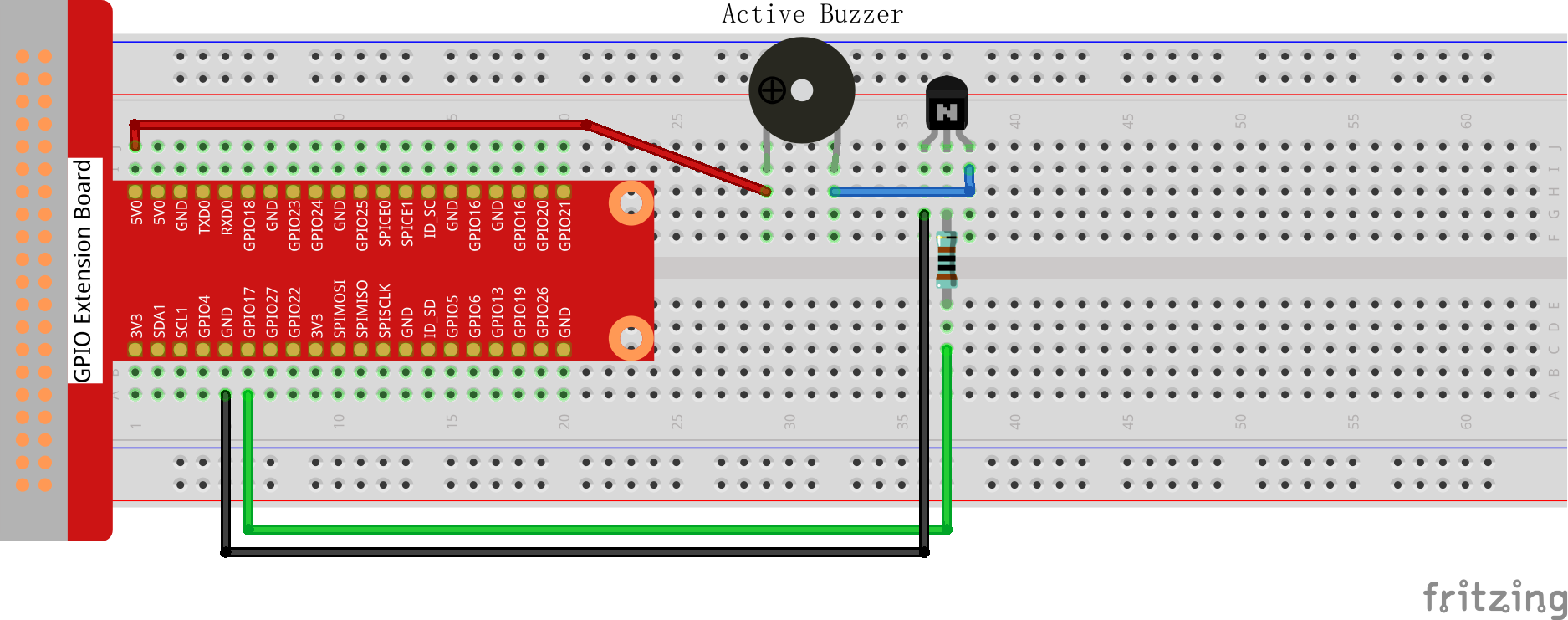
Sketch
import processing.io.*;

int level = 0;
int buzzerPin = 18;
int levelRange = 5;
Slider mySlider;

void setup() {
    size(400, 200);
    frameRate(50);
    mySlider = new Slider(width * 0.2f, height * 0.4f, width * 0.8f, height * 0.6f,
                        0, levelRange, level);
    GPIO.pinMode(buzzerPin, GPIO.OUTPUT);
}

void draw() {
    background(255);
    mySlider.display();

    if (level == 0) {
        GPIO.digitalWrite(buzzerPin, GPIO.LOW);
    } else if ((frameCount / (levelRange - level + 1)) % 2 == 0) {
        GPIO.digitalWrite(buzzerPin, GPIO.LOW);
    } else {
        GPIO.digitalWrite(buzzerPin, GPIO.HIGH);
    }
}

void mouseDragged() {
    level = mySlider.dragValue(mouseX, mouseY);
}

// ------------------------------------------------------------------
//  Slider class
// ------------------------------------------------------------------
class Slider {
    float slotAX, slotBX, slotAY, slotBY;
    float lineX;
    float depth;
    int max, min, val;

    Slider(float ax, float ay, float bx, float by, int minVal, int maxVal, int current) {
        slotAX = ax;
        slotAY = ay;
        slotBX = bx;
        slotBY = by;
        min   = minVal;
        max   = maxVal;
        val   = current;

        lineX = map(val, min, max, slotAX, slotBX);
        depth = (slotBY - slotAY) * 0.75f;
    }

    void display() {
        rectMode(CORNERS);

        // track
        fill(200);
        stroke(255, 0, 0);
        rect(slotAX, slotAY, slotBX, slotBY);

        // filled portion
        fill(255, 0, 0);
        rect(slotAX, slotAY, lineX, slotBY);

        // labels
        fill(0);
        textSize(depth);
        text(min, slotAX, slotBY + depth);
        text(max, slotBX, slotBY + depth);
        text(val, lineX, slotAY);
    }

    int dragValue(float mx, float my) {
        if (mx >= slotAX && mx <= slotBX && my >= slotAY && my <= slotBY) {
            float mapped = map(mx, slotAX, slotBX, min, max);
            val = constrain(round(mapped), min, max);
            lineX = map(val, min, max, slotAX, slotBX);
        }
        return val;
    }
}
How it works?
This interactive metronome demonstrates custom widget creation and real-time audio control:
Custom Slider Widget:
- Slider Class: Creates a reusable UI component with Slider(ax, ay, bx, by, minVal, maxVal, current)
- 7 Parameters: Position coordinates (ax,ay) to (bx,by), value range (min to max), and initial value
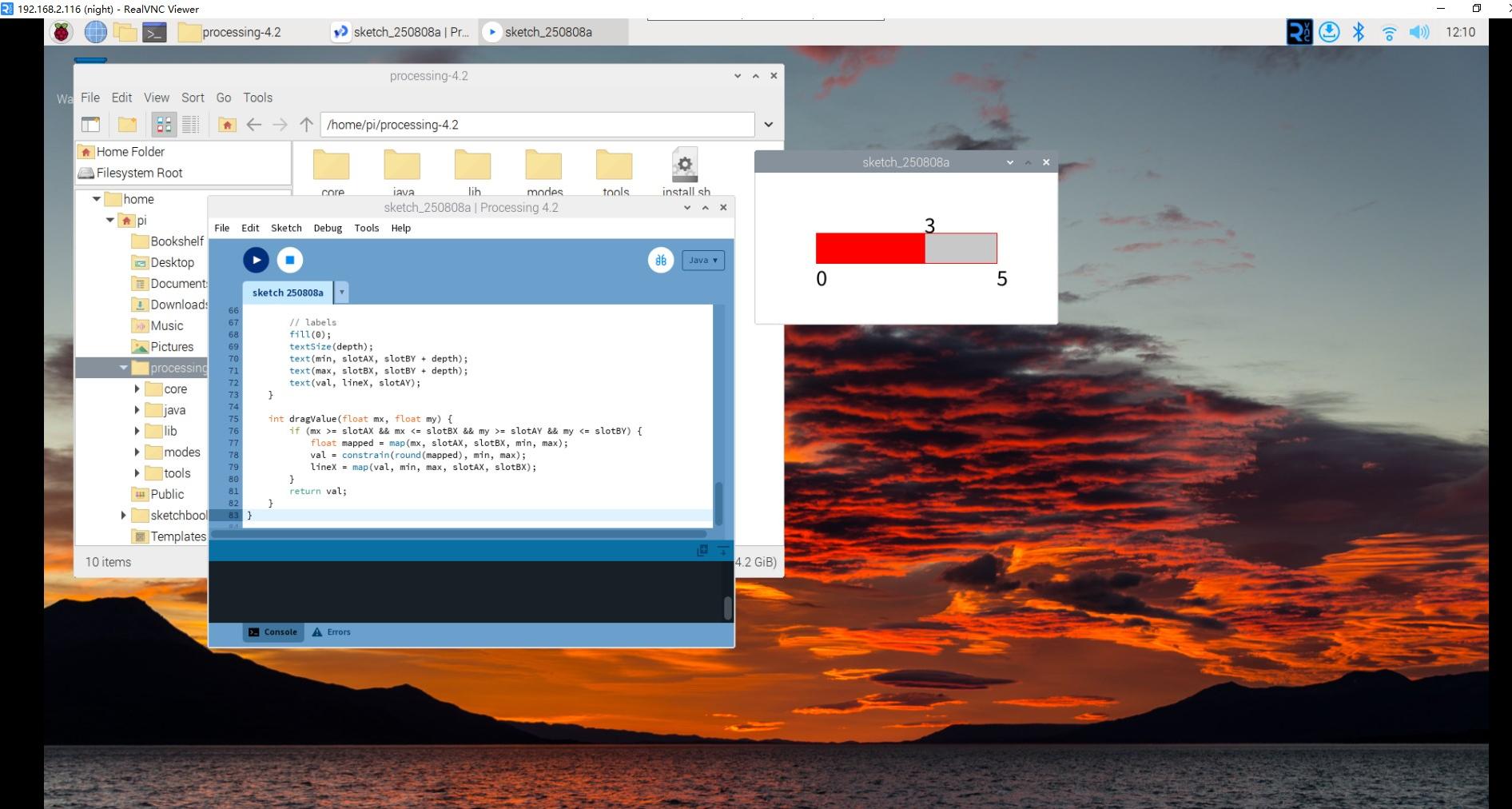
- Visual Design: Red-filled track showing current position with numerical labels
- Interactive Control: dragValue() method handles mouse dragging with boundary checking
Metronome Logic:
- 6 Tempo Levels: Level 0 (silent) through Level 5 (fastest tempo)
- Variable Speed Formula: frameCount / (levelRange - level + 1) % 2
- Beat Calculation: Higher levels create faster alternating on/off cycles
- Hardware Output: Controls GPIO buzzer pin for audible beats
Real-time Beat Generation:
The tempo algorithm works as follows:
- Level 0: No sound (buzzer always OFF)
- Level 1: Slowest tempo: frameCount / 5 % 2 (beat every 5 frames)
- Level 2: Medium-slow: frameCount / 4 % 2 (beat every 4 frames)
- Level 3: Medium: frameCount / 3 % 2 (beat every 3 frames)
- Level 4: Medium-fast: frameCount / 2 % 2 (beat every 2 frames)
- Level 5: Fastest: frameCount / 1 % 2 (beat every frame)
Interactive Features: - Mouse Control: Drag slider to instantly change tempo - Visual Feedback: Slider position and numerical value update in real-time - Audio Feedback: Buzzer immediately responds to tempo changes - Smooth Operation: 50 FPS refresh rate ensures responsive interaction
Programming Concepts:
- Object-Oriented Design: Custom Slider class with encapsulated functionality
- Mathematical Mapping: map() function converts mouse position to tempo values
- Constraint Handling: constrain() keeps values within valid range
- Modular Code: Separate display and interaction methods
- Real-time Control: Frame-based timing for consistent beat generation
User Interface Design: - Clear Visual Hierarchy: Slider track, fill, and labels clearly show current state - Immediate Response: No delay between slider movement and tempo change - Boundary Feedback: Slider cannot be dragged outside valid range - Professional Appearance: Clean red and white color scheme
This project shows how to create professional-looking interactive controls for real-time audio applications!
For more please refer to Processing Reference.