Pixel Art Canvas
In this project, we’ll create a digital pixel art canvas where you can draw colorful artwork! Use your mouse to paint on a grid, choose from 8 different colors, and save your masterpieces. It’s like having a mini painting program!
Sketch
// Pixel Canvas – drag-to-draw support
color currentColor;
int gridSize = 20;
boolean isDrawing = false;

void setup() {
    size(400, 400);
    background(255);
    currentColor = color(0, 0, 0); // default black
}

void draw() {
    // draw grid
    drawGrid();

    // show current color and tool tips
    drawUI();

    // drag-to-draw
    if (isDrawing && mousePressed) {
        drawPixel(mouseX, mouseY);
    }
}

// draw grid lines
void drawGrid() {
    stroke(220);
    strokeWeight(1);

    // vertical lines
    for (int i = 0; i <= width; i += gridSize) {
        line(i, 0, i, height);
    }

    // horizontal lines
    for (int i = 0; i <= height; i += gridSize) {
        line(0, i, width, i);
    }
}

// draw a single pixel
void drawPixel(int x, int y) {
    int gridX = (x / gridSize) * gridSize;
    int gridY = (y / gridSize) * gridSize;

    // stay within canvas bounds
    if (gridX >= 0 && gridX < width && gridY >= 0 && gridY < height) {
        fill(currentColor);
        noStroke();
        rect(gridX, gridY, gridSize, gridSize);
    }
}

// draw user interface
void drawUI() {
    // current color display
    fill(255, 255, 255, 200);
    stroke(100);
    rect(10, 10, 100, 60);

    fill(currentColor);
    noStroke();
    rect(15, 15, 30, 30);

    fill(0);
    textSize(12);
    text("Current", 50, 25);
    text("LMB: Draw", 50, 40);
    text("RMB: Erase", 50, 55);

    // color palette
    drawColorPalette();
}

// draw color palette
void drawColorPalette() {
    color[] palette = {
        color(0, 0, 0),      // black
        color(255, 0, 0),    // red
        color(0, 255, 0),    // green
        color(0, 0, 255),    // blue
        color(255, 255, 0),  // yellow
        color(255, 0, 255),  // magenta
        color(0, 255, 255),  // cyan
        color(255, 255, 255) // white
    };

    for (int i = 0; i < palette.length; i++) {
        fill(palette[i]);
        stroke(100);
        strokeWeight(1);

        int x = 120 + (i % 4) * 25;
        int y = 15 + (i / 4) * 25;
        rect(x, y, 20, 20);

        // highlight current color
        if (palette[i] == currentColor) {
            noFill();
            stroke(255, 0, 0);
            strokeWeight(3);
            rect(x - 2, y - 2, 24, 24);
        }
    }
}

// start drawing on mouse press
void mousePressed() {
    // check if a color swatch was clicked
    if (selectColor()) return;

    isDrawing = true;

    if (mouseButton == LEFT) {
        // left button draws
        drawPixel(mouseX, mouseY);
    } else if (mouseButton == RIGHT) {
        // right button erases (white)
        color tempColor = currentColor;
        currentColor = color(255);
        drawPixel(mouseX, mouseY);
        currentColor = tempColor;
    }
}

// continue drawing while dragging
void mouseDragged() {
    if (isDrawing) {
        if (mouseButton == LEFT) {
            drawPixel(mouseX, mouseY);
        } else if (mouseButton == RIGHT) {
            // right button erases
            color tempColor = currentColor;
            currentColor = color(255);
            drawPixel(mouseX, mouseY);
            currentColor = tempColor;
        }
    }
}

// stop drawing on mouse release
void mouseReleased() {
    isDrawing = false;
}

// color selection logic
boolean selectColor() {
    color[] palette = {
        color(0, 0, 0), color(255, 0, 0), color(0, 255, 0), color(0, 0, 255),
        color(255, 255, 0), color(255, 0, 255), color(0, 255, 255), color(255, 255, 255)
    };

    for (int i = 0; i < palette.length; i++) {
        int x = 120 + (i % 4) * 25;
        int y = 15 + (i / 4) * 25;

        if (mouseX >= x && mouseX <= x + 20 && mouseY >= y && mouseY <= y + 20) {
            currentColor = palette[i];
            return true;
        }
    }
    return false;
}

// keyboard shortcuts
void keyPressed() {
    if (key == 'c' || key == 'C') {
        // clear canvas
        background(255);
    } else if (key == 's' || key == 'S') {
        // save image
        save("pixel_art_" + year() + month() + day() + hour() + minute() + second() + ".png");
        println("Image saved!");
    } else if (key >= '1' && key <= '8') {
        // quick color selection via number keys
        color[] palette = {
            color(0, 0, 0), color(255, 0, 0), color(0, 255, 0), color(0, 0, 255),
            color(255, 255, 0), color(255, 0, 255), color(0, 255, 255), color(255, 255, 255)
        };
        currentColor = palette[key - '1'];
    }
}
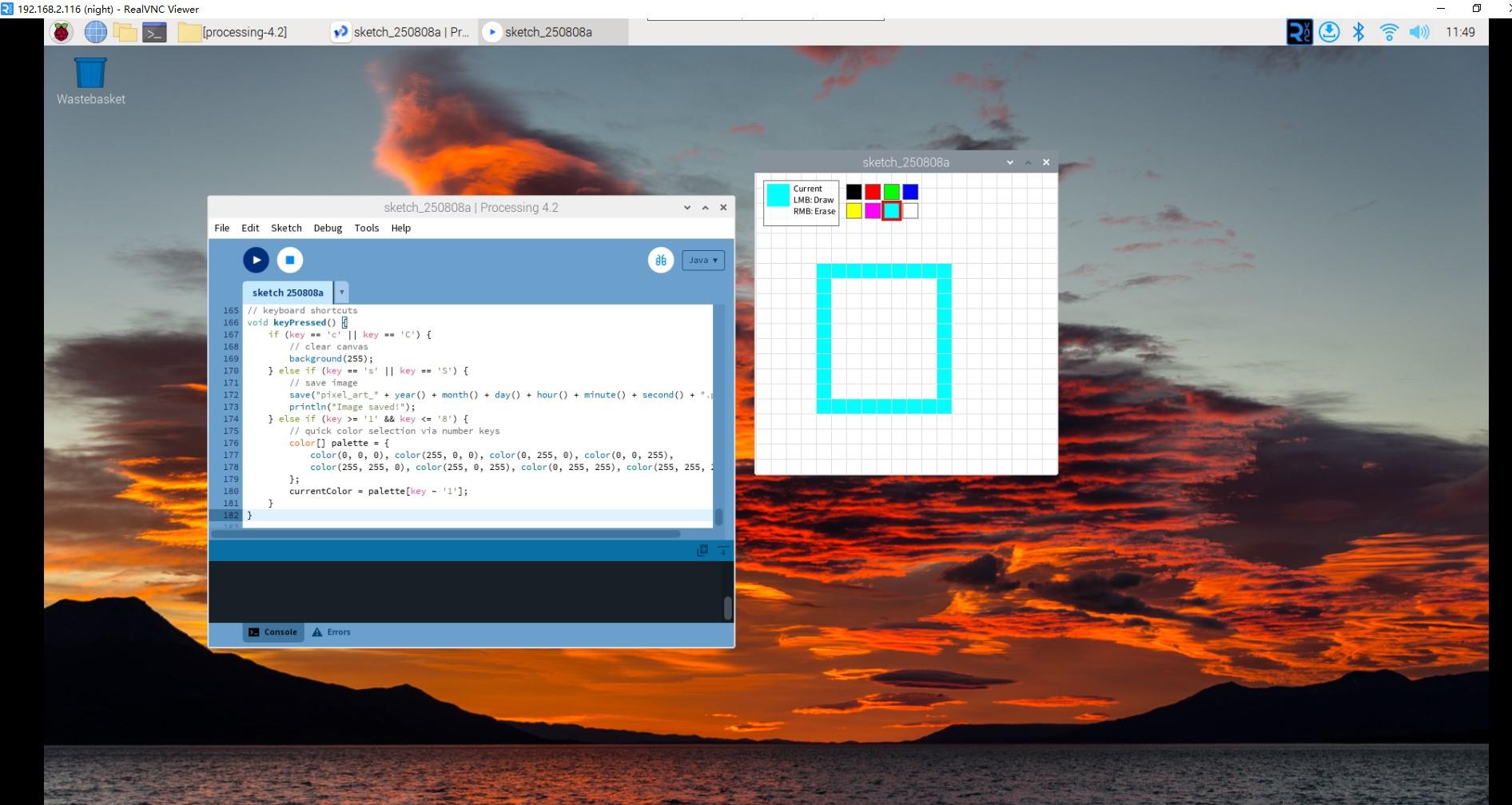
How it works?
This pixel art canvas demonstrates advanced interactive programming concepts:
Grid-Based Drawing System:
- The canvas is divided into a 20x20 pixel grid using gridSize = 20
- drawGrid() draws guide lines to show pixel boundaries
- drawPixel() snaps drawing to the grid using integer division: (x / gridSize) * gridSize
Color Management:
- Eight-color palette stored in a color[] array
- currentColor variable tracks the selected color
- drawColorPalette() creates clickable color swatches
- Red outline highlights the currently selected color
Advanced Mouse Interaction:
- Left-click drawing: mouseButton == LEFT paints with current color
- Right-click erasing: mouseButton == RIGHT paints white to erase
- Drag support: mouseDragged() enables continuous drawing while moving
- State tracking: isDrawing boolean prevents accidental drawing
User Interface Elements: - Real-time color preview in top-left corner - Interactive color palette with visual feedback - Clear instructions displayed on screen - Professional-looking semi-transparent panels
File Operations: - Save artwork: Press ‘S’ to export as PNG with timestamp - Clear canvas: Press ‘C’ to start fresh - Quick color selection: Press number keys 1-8 for instant color switching
Collision Detection:
- selectColor() function checks if mouse clicks are within color swatches
- Boundary checking ensures drawing stays within canvas limits
- Pixel-perfect hit detection for color selection
Key Programming Concepts: - State machines: Drawing/not-drawing states - Modular functions: Each feature has its own function - Event handling: Multiple input methods (mouse, keyboard) - User feedback: Visual cues for all interactions - Data persistence: Save/load functionality
Creative Features: - Smooth drawing experience with drag support - Professional color palette - Instant visual feedback - Multiple interaction methods for different user preferences
This project shows how to build a complete creative application with a polished user interface!
For more please refer to Processing Reference.